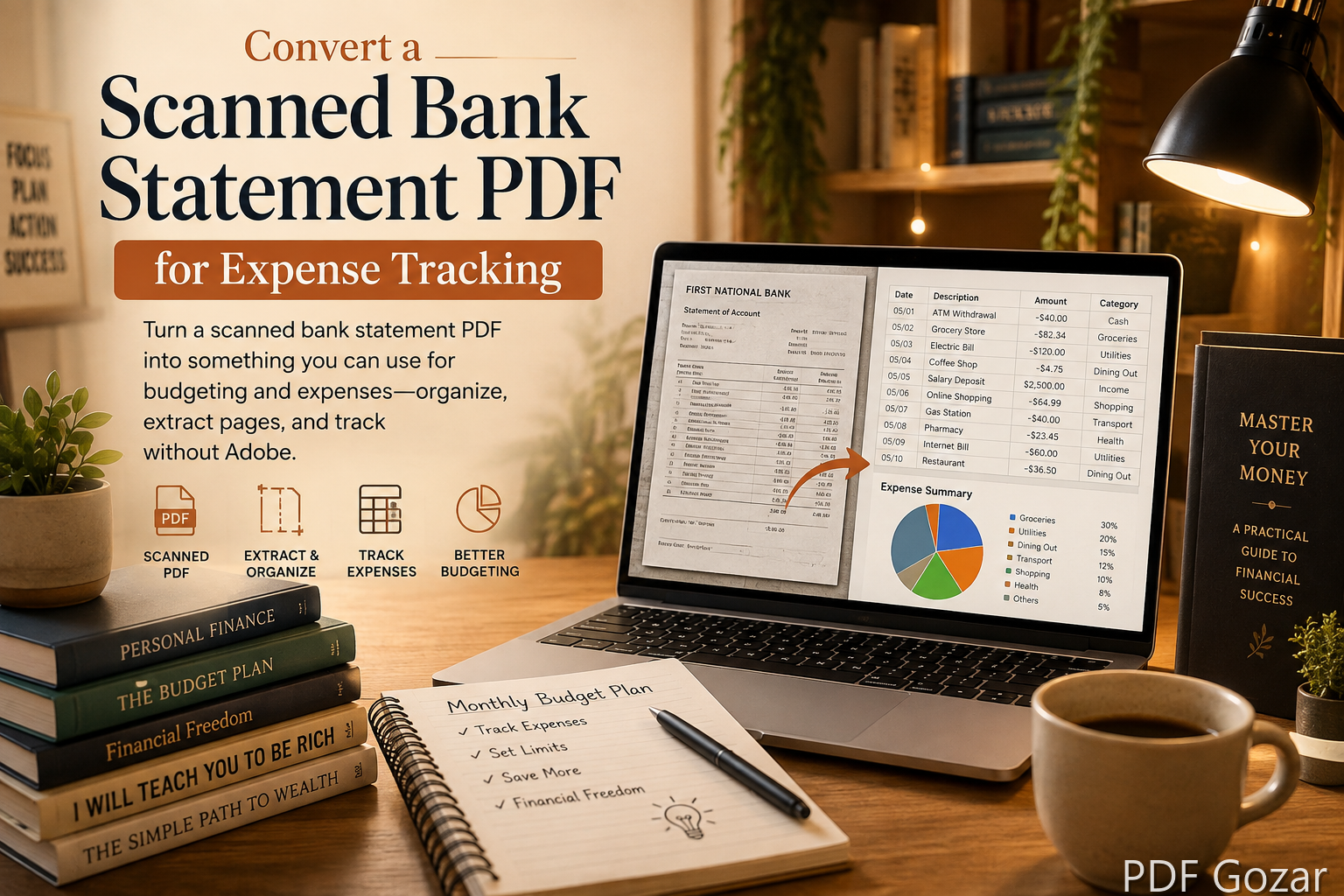
Convert a Scanned Bank Statement PDF for Expense Tracking#
Banks love clean digital statements. Life hands you a scan—a landlord’s PDF of a cashier’s check deposit, a photo of a paper statement, or an emailed scan from a joint account. For US freelancers and households, you still need those numbers in a budget spreadsheet, tax folder, or reimbursement pack.
This guide shows how to make a scanned statement PDF usable for expense tracking with free browser tools. PDF to Word is not required for most workflows—and when conversion is imperfect on scans, smarter organization beats fighting OCR.
Privacy first: bank statements show account numbers and spending. Prefer local/browser tools you trust, avoid random “free OCR” uploads for full statements, and redact when sharing.
What “Usable” Means for Tracking#
You might need:
- A smaller PDF with only the month you care about
- Images of pages for a bookkeeper
- A CSV/spreadsheet you type or lightly OCR yourself
- A packet merged with receipts for a client bill
Pick the outcome before you convert anything. Freelancers often need “business rows only.” Households often need “prove this rent payment cleared.” Those are different packets.
Prefer Official Downloads When Possible#
Before working on a scan, log into the bank and download the native PDF statement. Native files are smaller, sharper, and often already text-based. Use the scan only when the official file is unavailable—for example, a closed account, a paper-only legacy statement, or a third party’s deposit proof.
If the bank app offers CSV export for the same period, download that too. Pair CSV numbers with the PDF as the visual source of truth.
Clean and Split the Scan#
- If the “PDF” is really photos, convert with JPG to PDF or PNG to PDF in date order.
- Rotate pages upright in your phone gallery before upload.
- Use Split PDF to keep only the statement pages—drop cover sheets and ads.
- Name it
Chase-Checking-****1234-2026-07.pdf(mask full account numbers in filenames).
Skewed photos cause bad OCR and hard reading. Retake the photo under even light if balances are unreadable. Do not use flash glare across the account summary box.
Tracking Workflow A — Spreadsheet by Hand (Most Accurate)#
For tax and books, accuracy beats automation on muddy scans.
- Open the statement PDF beside Google Sheets or Excel
- Create columns: Date, Description, Amount, Category, Notes
- Enter transactions for the month (or only business rows)
- Store the PDF link/path in a “Source file” column
This is slow once—and reliable when OCR would misread 8 as B. For a busy month, enter only flagged business lines first, then fill personal categories later if you care about a full budget.
A simple monthly sheet layout#
Use one tab per month. Freeze the header row. Add a Reconciled checkbox column once the ending balance matches your sheet totals. When a transfer between your own accounts appears, mark it so it does not inflate income.
Tracking Workflow B — Bookkeeper Packet#
Your CPA asks for statements + receipts:
- Statement PDF (split clean)
- Receipt PDF from receipt photo workflow
- Combine with Merge PDF only if they want one file; many prefer separate attachments
- Subject line:
2026-Q3 Books – Statements + Receipts – YourName
If the combined file is too large for email, send statements and receipts as separate messages or use the size tips in How to Shrink a PDF Under 25MB for Gmail.
Tracking Workflow C — Soft OCR Path (When You Accept Cleanup)#
If you have access to a desktop OCR tool or your Notes app’s text recognition on a clear page photo:
- Export a crisp page with PDF to JPG (or PDF to PNG for sharper type)
- Run device OCR locally
- Paste into Sheets and fix errors
- Never upload full unredacted statements to sketchy online OCR sites
Online “PDF to Word” converters often garble multi-column bank layouts. Expect cleanup even when a Word file appears. Verify every amount against the PDF before you file taxes on OCR output.
Redact Before You Share#
When a client or roommate only needs proof of one payment:
- Split to the single page with Split PDF
- Cover unrelated transactions with Free PDF Editor using Cover (visual) or Redact (black bar; clears overlapping edited text — native PDF text may still remain on complex scans)
- Share the minimal file
Do not email full statements to large Slack channels. Do not post statements in shared class or roommate Drive folders. Mask account numbers in screenshots you paste into chat.
Organize a Year of Statements#
Folder pattern:
Finance/2026/Bank-Statements/Checking/
files: 2026-01.pdf … 2026-12.pdf
Optional annual merge for archival (huge)—prefer monthly files for upload limits and privacy. If you must combine quarters, use Merge PDF. Keep tax-year folders aligned with how your CPA asks for documents (calendar year vs fiscal year).
Expense Categories Freelancers Actually Use#
- Software / SaaS
- Advertising
- Travel
- Contractor payments
- Owner draws (not expenses—track separately)
- Transfers between your own accounts (exclude from P&L)
- Client refunds and chargebacks (note the original invoice)
Tag transfers so you do not double-count income. If a personal card pays a business tool, note reimbursement so Schedule C (or your entity books) stays clean—ask your tax pro for your structure.
Joint Accounts and Roommates#
Agree who downloads statements and where files live. Split pages that show only shared rent or utilities when you need to prove a payment without exposing every purchase. For roommate reimbursement, a redacted one-page PDF plus the receipt pack from the receipt photos guide is usually enough.
If you share bookkeeping with a partner, store redacted client-facing packets separately from full monthly archives. Full archives stay private; share packs leave the house. That habit prevents an old Slack upload from exposing a year’s spending.
Common Mistakes to Avoid#
- Trusting OCR totals without reconciling to the statement ending balance
- Filename that includes the full account number
- Merging an entire year into one email attachment
- Uploading unredacted statements to random conversion sites
- Throwing away the scan after a “successful” conversion you never verified
Checklist#
- Used official PDF when available
- Pages rotated and ads removed
- Filename masks full account number
- Tracking method chosen (sheet vs packet vs light OCR)
- Redacted before external sharing
- Stored in dated folder for tax season
FAQ#
Can I convert a scanned statement to Excel perfectly?#
Rarely in one click. Columned bank layouts confuse converters. Budget time to verify amounts.
What about PDF to Word on this site?#
Word conversion for complex scans is often disappointing even when a tool exists. For expense tracking, Sheets + source PDF is the dependable pair.
How long should I keep statements in the US?#
Many people keep at least 3 years for federal tax issues; some keep longer for mortgages or audits. Ask your tax pro for your situation.
Is a photo of an ATM mini-statement enough?#
For personal memory, maybe. For books, prefer the full monthly statement PDF.
What if the scan includes multiple months?#
Split by month with Split PDF before you track. Mixing months in one sheet tab causes reconciliation headaches.
Should I password-protect archived statements?#
Yes if your device backups are shared or cloud folders are broad. Flattening is unrelated—statements are usually not fillable forms. Focus on access control and redaction when sharing.
Next Step#
Split and label the scan with Split PDF, then either enter key lines into a sheet or build a bookkeeper packet with Merge PDF. Clean files and verified numbers beat a messy conversion you do not trust at tax time.