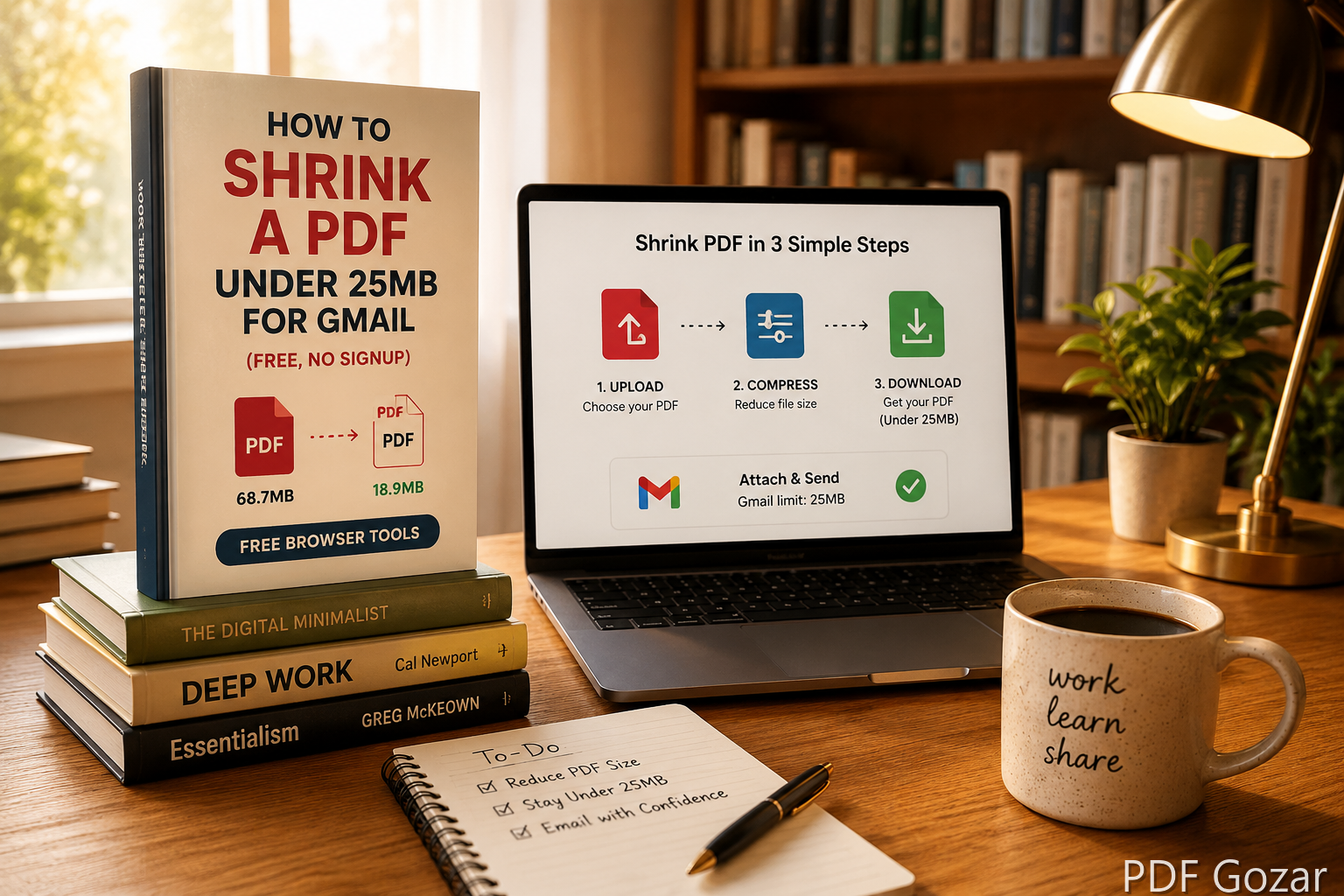
How to Shrink a PDF Under 25MB for Gmail (Free, No Signup)#
Gmail’s attachment limit is 25MB. One scanned contract, a slide deck export, or a photo-heavy PDF can blow past that in seconds. Outlook.com and many work mail servers are similarly strict. Google Drive links help, but clients, landlords, and HR teams often still want a real attachment.
This guide shows practical ways to get under 25MB without installing Adobe Acrobat and without creating an account. Start with Compress PDF for scans, then use split/rebuild fallbacks if needed.
Why Your PDF Is So Large#
PDF size is not “number of pages.” It is mostly:
- Embedded images at phone or scanner resolution (300–600 DPI when 150 DPI would do)
- Uncompressed scans saved as full-color pages
- Fonts and media left in from Word, PowerPoint, or design apps
- Duplicate pages or blank pages you never removed
A 40-page text syllabus can be 2MB. A 4-page scanned lease can be 40MB. Treat images as the main suspect.
Also watch for “silent” size boosters: a single full-bleed cover photo, a high-resolution ID scan tucked in the appendix, or a PowerPoint export that embeds every slide background at print quality. If the file is mostly text and still huge, open it and skim for those outliers before you rebuild the whole document.
Quick Check Before You Compress#
- Open the file and note the size in Finder (Mac) or File Explorer (Windows).
- If it is under ~20MB, attach it. Leave headroom for encoding overhead.
- If it is barely over 25MB, remove a cover page or blank page first with Split PDF—sometimes that is enough.
- If it is 50MB+, plan to rebuild from lighter images or send multiple parts.
Write the size down. After each change, check again. Guessing “it should be fine now” is how people burn three Gmail retries in a row.
Method 0: Compress PDF (fastest for scans)#
For photo-heavy and scanned PDFs, compression is usually the first move.
- Open Compress PDF.
- Upload the file (this tool accepts files larger than a typical 25MB email limit).
- Choose Email (strong) when you need Gmail-ready size, or Balanced if readability matters more.
- Download and check the new size — aim for ~20MB or less so encoding headroom remains.
When to use this: Leases, receipt packs, phone-photo PDFs, and any scan that is “just images.”
When to skip: You must keep selectable text for an ATS or legal workflow — use Split or a Drive link instead, or keep a text original.
Method 1: Split and Send in Parts#
When the document is long but each section is useful alone (tax packets, appendices, multi-unit leases), splitting is the fastest fix.
- Open Split PDF.
- Upload the large file.
- Extract page ranges (for example, pages 1–10 and 11–20).
- Download each smaller PDF and attach both emails, or attach one and note “part 2 follows.”
When to use this: The recipient cares more about getting the content today than receiving one single file. Label parts clearly: Lease-Unit3-Pages1-8.pdf.
When not to use this: The recipient’s portal accepts only one upload, or a lawyer needs a single Bates-ready binder. In those cases, rebuild lighter pages instead of splitting.
Method 2: Rebuild From Lighter Images#
Scanned PDFs are often “photos glued into a PDF.” The reliable fix is to export pages, then rebuild at a smaller size.
- Export pages with PDF to JPG.
- On your phone or computer, resize images so the long edge is about 1200–1600 pixels for email (enough for reading, far smaller than a print scan).
- Convert the images back with JPG to PDF.
- If you have many files, combine them with Merge PDF.
Quality tip: Black-and-white agreements rarely need full color. Convert to grayscale in Photos or Preview before rebuilding if color is not required.
If some pages are already clean text and only a few are heavy scans, export and lighten only the heavy pages, then merge the light and heavy parts back together. You do not have to rasterize a perfectly good text section just because page 12 has a photo.
Method 3: Edit Out Heavy Pages and Extras#
Sometimes one page is the problem—a full-bleed photo cover, a scanned ID at max resolution, or an unused appendix.
- Open Free PDF Editor.
- Remove or cover unnecessary images where the tool allows.
- Delete blank pages by splitting them out and keeping only what you need.
- Save a clean copy and check the new file size.
If you only need signatures on page one, send a short PDF instead of the entire binder. Pair Split PDF with Merge PDF when you want to drop pages 15–40 but keep 1–14 and a short signature page at the end.
Method 4: Use Drive Only When Attachment Truly Fails#
If the file must stay high resolution (architectural drawings, photo evidence), do not destroy quality for email:
- Upload to Google Drive or OneDrive.
- Set sharing to “Anyone with the link can view” (or restrict to the recipient’s email).
- Paste the link in Gmail.
Mention in the email that the attachment exceeded 25MB and the Drive link is the full-quality copy. Many US offices accept this when you explain why. For HR or legal deadlines, attach a slim “cover” PDF (first page or summary) and put the full file in Drive so something still arrives in the inbox.
Before / After: Three Common US Scenarios#
Scanned apartment lease (38MB → under 10MB)#
You photographed eight pages with your phone and merged them at full resolution. Export with PDF to JPG, resize so the long edge is about 1400px, convert grayscale if the lease is black text on white, then rebuild with JPG to PDF. Check that initials and the signature line stay readable before you send.
Multi-chapter tax packet (52MB)#
The client needs everything this week, but Gmail will not take one file. Split into logical parts with Split PDF: forms, W-2/1099 copies, and receipts. Email part 1 with a short note that parts 2 and 3 follow. Name each file so nothing gets lost in the thread.
Slide deck export (29MB)#
PowerPoint “Best for printing” created a near-miss over 25MB. Re-export from PowerPoint at a lower quality if you still have the source. If you only have the PDF, drop speaker-note dump pages and appendix slides you do not need using Split PDF, or rebuild only the image-heavy slides with the JPG workflow above.
Settings That Prevent the Problem Next Time#
- Scan at 150–200 DPI for email, not 600 DPI “archive” quality.
- Prefer PDF export from Word with “Minimum size” or “Online” quality when available.
- Avoid photographing documents under harsh glare; glare forces higher contrast and larger files.
- Name files clearly:
Invoice-Acme-2026-08.pdfso recipients do not ask you to resend “the other one.” - Keep an “email-ready” and “archive” copy when the original must stay print-sharp—do not overwrite your only high-res file.
Troubleshooting When It Still Will Not Attach#
- Still 26–28MB after edits: Encoding overhead can push you over. Remove one more page or resize images a bit smaller, then try again.
- Looks fine on phone, huge on desktop: Confirm you are attaching the rebuilt file, not the original sitting next to it in Downloads.
- Recipient says pages are blurry: You overshrunk. Rebuild again at ~1600px long edge, or send a Drive link for the archive copy and a readable email copy as the attachment.
- Corporate filter strips the file: Some networks block large or zip-wrapped PDFs. Split into two plain PDFs rather than zipping.
- Form fields disappeared: Rebuilding from images flattens fillable fields. Keep a field-based original for signing workflows and only rasterize copies meant for reading.
Common Mistakes#
- Zipping a PDF — Gmail still counts the zip toward the limit, and many corporate filters block zip attachments.
- Screenshotting every page at full phone resolution — often larger than a careful scan.
- Emailing password-protected archives without warning — IT filters may strip them.
- Shrinking until text is unreadable — if the recipient must sign or audit, keep text sharp and cut pages instead.
- Sending the wrong download — after several rebuilds, attach the newest file and delete or rename older drafts so you do not mail the 40MB version by habit.
FAQ#
Does Gmail’s 25MB limit include the email body?#
The practical limit is about 25MB for the total message, including attachments. Aim for ~20MB of files so encoding does not push you over.
Will compressing a PDF break fillable form fields?#
Rebuilding from images flattens forms. If you need fillable fields, remove unused pages or ask the sender for a lighter original instead of rasterizing.
Is it safe to upload a PDF to a browser tool?#
Prefer tools that process files in the browser when possible, and avoid uploading tax IDs or medical records to random sites. For sensitive files, use Drive with restricted sharing or your employer’s approved portal.
What about Outlook desktop?#
Outlook desktop may allow larger sends through Exchange, but external recipients still hit Gmail or other caps. Shrink before you send across domains.
Can I just lower the email quality somehow?#
Gmail does not offer a “send smaller PDF” toggle. The size is fixed by the file you attach. Fix the PDF first, then compose the message.
Next Step#
Check your file size, then pick the lightest fix: start with Compress PDF (Email preset) for scans, Split PDF for long packs, PDF to JPG + JPG to PDF for rebuilds, or Edit PDF to drop junk pages. Get under 25MB once, then scan lighter next time so Gmail stops being the bottleneck.