PDF Flattening Explained: Why, When, and How to Flatten a PDF#
If you've ever filled out a PDF form only to find the fields empty or shifted when the recipient opened it, you've encountered the need for PDF flattening. But what exactly is PDF flattening, and when do you actually need it?
What Is PDF Flattening?#
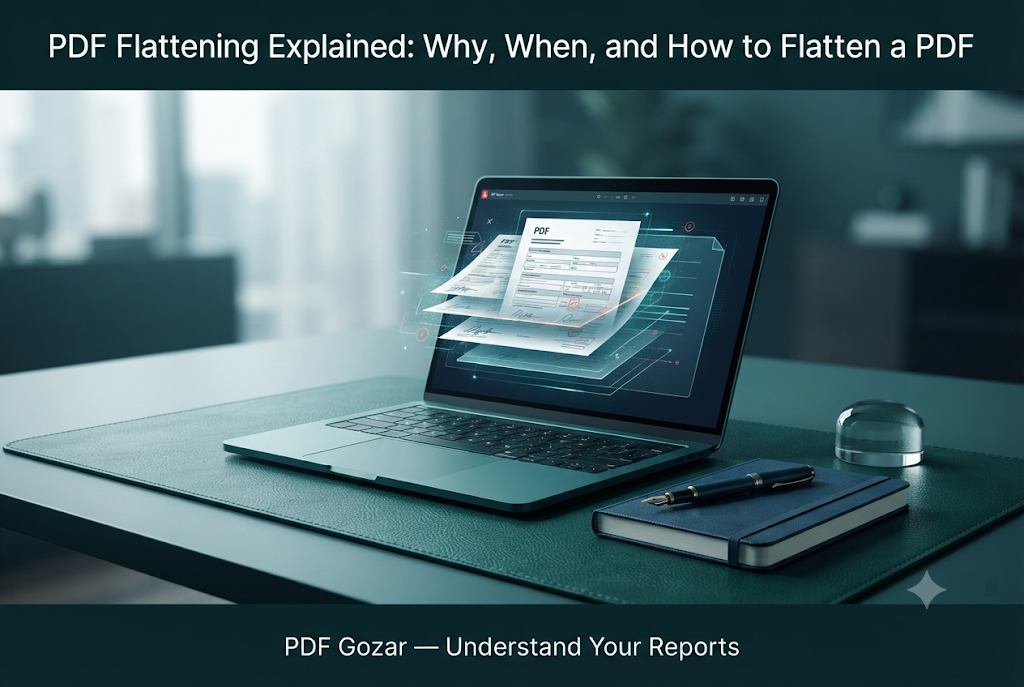
Flattening a PDF means merging interactive layers into the permanent page content. A PDF can contain multiple layers: background text, images, vector graphics, and interactive form fields (widgets). When you flatten a PDF, the form field data becomes a static part of the page — you can no longer click or type into those fields, but what you see is guaranteed to appear the same on any device, in any PDF viewer, and in any email client.
Think of it like printing a completed form: the ink is now on the page, but the blank worksheet remains for future editing. Flattening removes the "fillable" interactivity and locks in exactly what you've entered.
Why Fields Misbehave After Sending#
- Form field widgets are separate from page content. Email clients, mobile preview panes, and some PDF viewers do not preserve the interactive layer. They may show empty fields, shift text, or display a "please complete this form" prompt even though you've already filled everything.
- Recipients open with different viewers. macOS Preview, Adobe Reader, Chrome's built-in viewer, and web-based viewers all handle form data differently. A field that looks filled on your screen may appear blank to someone else.
- Gateways and proxies rebuild PDFs. Corporate email systems, cloud storage preview generators, and some antivirus scanners strip or rebuild the PDF structure, often dropping appearances and leaving only the empty field frames.
- You edited fields but never triggered a full "appearance" refresh. Simply typing into a field sets its value, but the visual appearance (the "appearance stream") may not be committed until the file is printed or exported to a new PDF.
When to Flatten#
| Situation | Action |
|---|---|
| You've finished all entries, signatures, and checkboxes | Flatten before emailing or uploading |
| The recipient uses an unknown PDF viewer or mobile device | Flatten to guarantee visibility |
| You need the form to look identical across all devices | Flatten as a "printed" snapshot |
| The form must be archived or stored without edit risk | Flatten to prevent further modifications |
| You're sending a completed tax form, permission slip, or HR election | Flatten so the recipient sees what you entered |
Do not flatten yet if:
- Another person still needs to fill in or modify fields
- You might need to correct a typo or add a missing value later
- The form uses certified digital signatures (follow your IT/Acrobat workflow instead)
- The recipient specifically requires an interactive fillable template
Methods to Flatten a PDF#
There are three primary ways to flatten a PDF, each with trade-offs.
Method 1: Print to PDF (Most Reliable Free Option)#
"Printing" to a new PDF is the most common and reliable free method. When you print a filled form, the PDF renderer burns the field appearances into the page's raster or vector content, producing a new file where the fields are no longer interactive.
On Mac:
- Open the filled form in Preview or Chrome
- Choose
File → Print - Click the PDF button →
Save as PDF - Open the new file and verify you cannot click into old fields
On Windows:
- Open in Edge or Chrome
- Choose
Print→ destinationMicrosoft Print to PDForSave as PDF - Open the resulting file and confirm fields are static
Pros: Free, built into all operating systems, preserves text selectability (usually), maintains layout exactly. Cons: May lose some interactive elements (signature fields, calculated fields), requires a two-step process (fill → print → save).
Method 2: Browser-Based PDF Editor (Fast Burn-In)#
Using an online or desktop PDF editor with a "flatten" button can quickly burn field values into the page.
- Open your filled form in a tool like the PDF Gozar Edit PDF tool
- If fields already appear as static text, simply download a fresh copy
- If values are missing visually, re-type critical lines as normal text boxes on top of the form (match font size carefully)
- Before downloading, ensure the "Flatten for email" or similar option is checked
- Download and spot-check on your phone or a different computer
Pros: Quick, often one-click, useful when print-to-PDF is awkward (Chromebook, shared PC). Cons: Depends on the service's implementation; online tools may raise privacy concerns for sensitive forms; free tiers may limit file size or watermark the output.
Method 3: Image Round-Trip (Last Resort)#
For forms that resist other flattening methods, you can export pages as images and rebuild the PDF from those images.
- Export pages as JPG or PNG using a PDF to image tool
- Rebuild the PDF from those images using an image-to-PDF tool
- Result: a flat PDF where text is part of the image, not selectable or editable
Pros: Guarantees no interactive layer survives; useful for permission slips, signed documents where appearance outweighs editability. Cons: Text is no longer selectable or searchable; may lose fine detail at low resolutions; not suitable for forms the recipient must copy data from (e.g., entering values into a spreadsheet).
Signing Before You Flatten#
Always apply signatures before flattening. The order of operations matters:
- Fill all fields
- Apply any drawn or typed signatures
- Flatten via print-to-PDF or the editor's flatten button
- Email the flattened copy
If you flatten first, interactive signature fields will disappear, and you'd need to stamp a signature image instead. Drawn signatures should sit inside their designated boxes without covering critical legal text.
Email and Portal Tips#
- Attach the flattened PDF and, if the recipient might expect an editable form, mention "completed, non-editable copy" in the email body.
- If Gmail size is an issue after flattening, consult the shrink PDF under 25MB guide.
- Do not zip the file unless the recipient explicitly asked for it — many email filters block .zip attachments.
- Name the file clearly:
FieldTripPermission-AlexRivera-Signed.pdfso recipients immediately understand it's the final version. - Some portals still insist on the original fillable template. In that case, upload what they require and email a flattened confirmation copy to yourself and the coordinator so you have a record of what was submitted.
School, HR, and Clinic Examples#
- School permission form — Parents fill on phone; the nurse's desktop shows blanks if the form isn't flattened. Print-to-PDF on a laptop after filling fixes morning drop-off chaos.
- HR benefits election — HR systems sometimes re-present fillable templates. Upload the flattened "confirmation copy" plus keep screenshots if policy requires.
- Clinic intake — Offices that print your PDF need burned-in text so printers do not omit field appearances.
- Landlord or HOA forms — Boards often open attachments in webmail preview. Flattening prevents "empty form" replies when you already answered every question.
Verify on a Second Device#
Before you hit send:
- AirDrop, email, or cloud the flattened file to your phone
- Open it in a different app than you used to create it (e.g., if you created it in Chrome, open it in Preview or Adobe Reader)
- Confirm every checkbox and dollar amount is visible without tapping fields
- Zoom in on signature and date lines
If anything is missing, return to the fillable draft — not the flattened file — and repeat.
What "Looks Finished" Should Mean#
A finished file should show answers as normal page content. You should not be able to tab between fields. Checkboxes should look checked in print preview, not only when you click them. If your printer preview shows empty boxes, fix that before emailing — many offices print first and never notice an interactive layer on screen.
Common Mistakes to Avoid#
- Flattening, then noticing a typo with no draft left. Always keep the original fillable copy until you're certain the flattened version is correct.
- Emailing both the fillable and flattened files without labeling which is final. Confusion and duplicate work result.
- Using image round-trip for a form the recipient must copy into a database. The text won't be extractable.
- Assuming password protection equals flattening. Password protection restricts opening/editing but does not remove interactive fields.
- Cropping pages so tightly that printed margins cut off answers. Leave reasonable margins when printing to PDF.
Checklist#
- Draft fillable copy saved separately
- All fields visually correct on your screen
- Signature applied
- Flattened via print-to-PDF or burn-in edit
- Reopened on a second device — no empty boxes
- Filename shows Signed/Completed
FAQ#
Is flattening the same as password-protecting?
No. Flattening removes interactivity. Password protection restricts opening or editing — and can still leave fields intact for anyone who can open the file.
Will flatten break digital certificate signatures?
Advanced certificate workflows are different from a drawn signature. If your workplace uses certified signatures, follow IT's Acrobat process instead of image flatten.
Can the recipient still copy text?
Print-to-PDF often keeps text selectable. JPG round-trip does not. Prefer print-to-PDF when possible.
Fields look fine to me but empty to them — why?
Their viewer is showing the empty field widget, not the appearance stream. Flattening fixes that class of bugs.
Should I flatten tax forms?
Follow the IRS or software instructions for that year's forms. Many e-file paths are separate from emailing a PDF. When you email a filled worksheet for review, a flattened copy avoids blank-field confusion — but keep the editable draft for corrections.
What if only one page of a five-page form breaks?
Split that page, fix or flatten it, then merge the packet again so you do not rebuild pages that already look correct.
Next Step#
Save a fillable draft, finalize answers, then print-to-PDF (or burn in with the Edit PDF) tool. Email the flattened file so your completed form arrives looking completed — on every device.