How to Make a PDF Smaller for Gmail, Uploads, and Job Portals
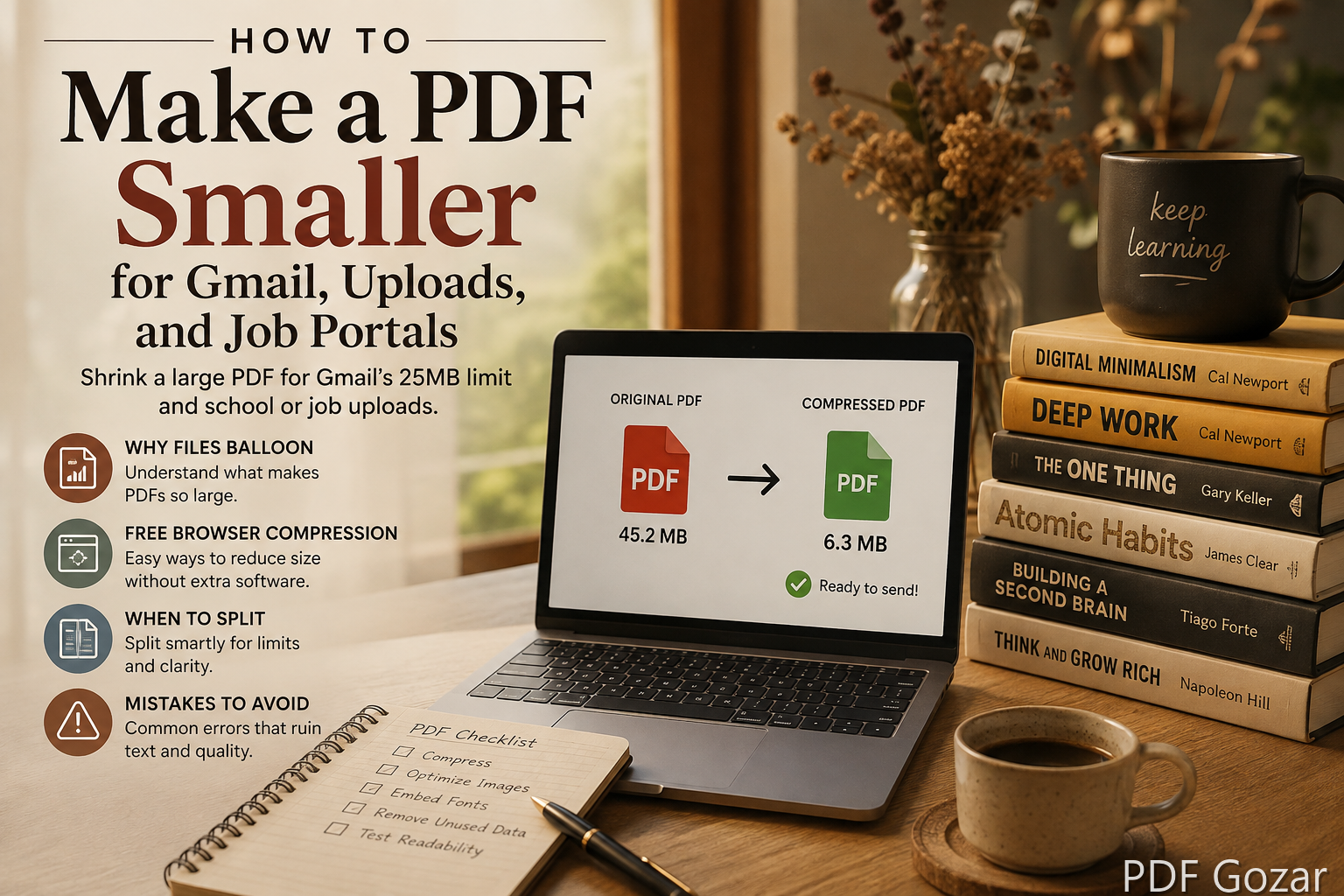
A PDF that will not attach is almost always too many heavy images, not “too many words.” Phone scans, camera-roll inserts, and “print to PDF” from a slide deck routinely hit 15–80 MB. Gmail’s attachment cap is 25 MB per message (Google’s current consumer limit). Many U.S. job portals, FAFSA-related uploads, court e-file, and LMS dropboxes sit in the 5–10 MB range per file.
This guide covers why PDFs get huge, how to shrink one in the browser, which quality preset to pick, and when compression is the wrong tool.
Why your PDF is large#
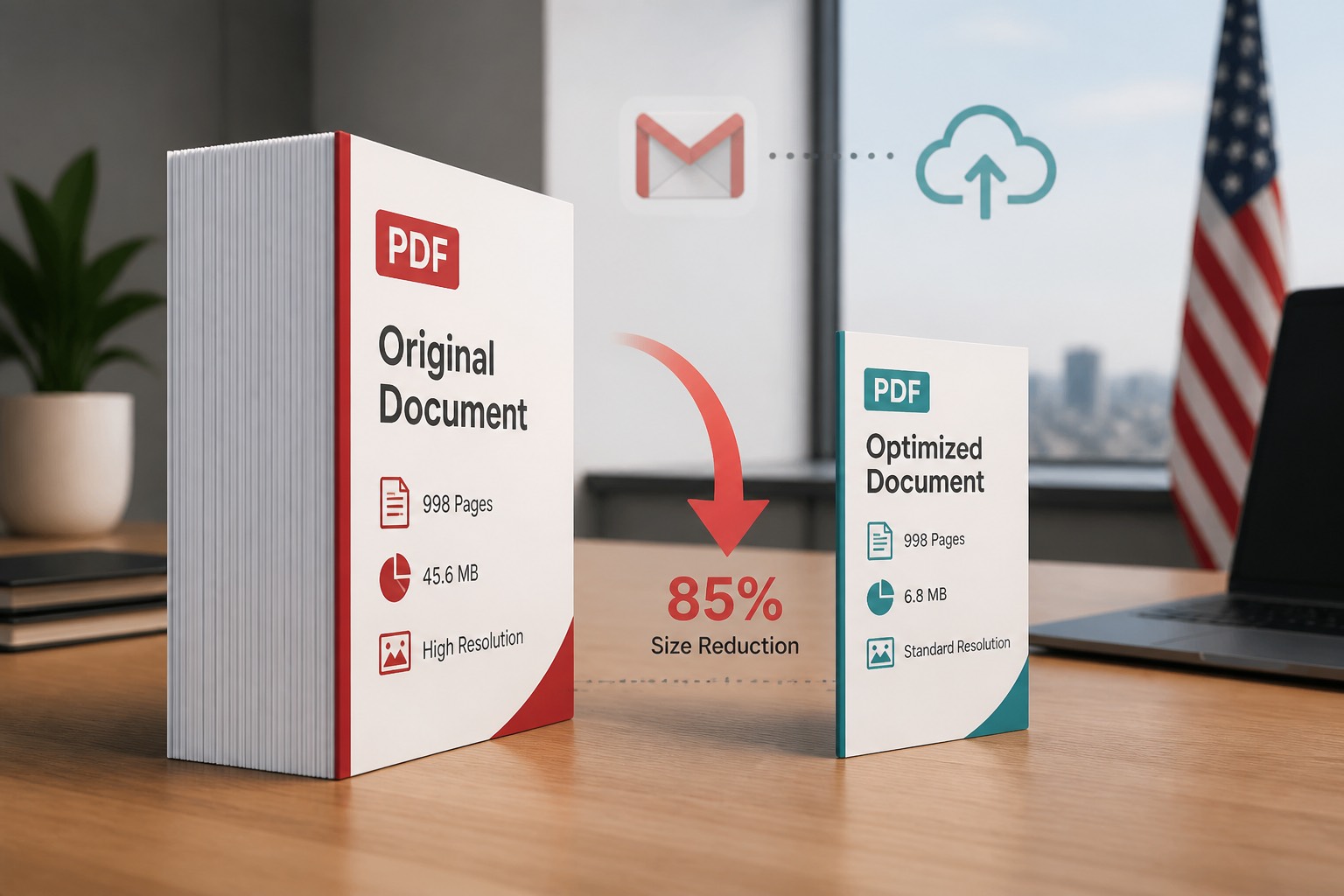
Text-only PDFs (a resume, a syllabus) are often under 1 MB. Size explodes when the file stores pictures of pages:
- Phone photos of paper, saved at full camera resolution
- Scanner defaults at 600 dpi color
- Screenshots pasted into Word, then exported to PDF
- Page-by-page “Print to PDF” of a photo-heavy Canva or PowerPoint file
- Embedded videos, high-res logos, or uncompressed TIFFs
Each letter-size color page at casual phone quality can be 2–8 MB. Ten pages become a Gmail reject. The text you typed is a rounding error next to those images.
A second, smaller culprit: duplicate font subsets and unused objects after many exports. That is why a 3-page flyer exported three times from design software can still be chubby. Compression or a fresh export usually helps more than deleting one paragraph.
Size limits you will actually hit (United States)#
| Destination | Typical cap (check theirs) |
|---|---|
| Gmail attach | 25 MB per email |
| Outlook.com / many work servers | Often 20–35 MB; company gateways can be lower |
| Common ATS / job portals | 2–5 MB for a resume PDF |
| Canvas / Google Classroom | Varies; 10–25 MB is common |
| IRS / many government portals | Often small; they want optimized text PDFs |
| Slack / Teams | Generous for images; still painful on mobile data |
If the portal says 2 MB and your scan is 18 MB, you need strong compression or fewer pages — not a different email subject line.
Make a PDF smaller in the browser (fastest path)#
Use Compress PDF. It runs in your browser (no account). The compressor accepts oversized files (up to the tool’s compress limit, on the order of 80 MB) so you can shrink something that already failed Gmail.
- Open Compress PDF.
- Drop the file.
- Choose a preset:
- Email (strong) — Gmail, chat, “just needs to be readable”
- Balanced — everyday homework and invoices (default)
- Print (light) — keep more detail for a form someone must sign or a figure with small type
- Wait for the before/after sizes.
- Download and attach.
Important: this tool re-encodes pages as compressed images so scans drop in size. Selectable text may become an image. Keep your original if you still need copy-paste, search, or a fillable form. For a text resume that is already 200 KB, compression will not magically help — and might hurt.
Which preset to pick#
| Situation | Preset |
|---|---|
| 40 MB phone-scan homework for Gmail | |
| 12 MB syllabus with a few photos | Balanced |
| Lease or W-9 where checkboxes must stay sharp | Print, then retry Email only if it still fails |
| Already a text PDF under 2 MB | Skip compression; send as-is |
If Email still leaves you at 28 MB, you do not have a preset problem. You have a page-count or resolution problem. Split or rescan.
Other ways to shrink (when the browser tool is not enough)#
Split out the pages you do not need#
A 60-page packet with two pages the teacher asked for should not be 60 pages. Use Split PDF to extract pages 3–4, then compress that file. Portals care about bytes, not your archive.
Rebuild from images at a sane size#
If you photographed 20 pages at 12 megapixels:
- Export or crop to page-only frames.
- Build a new PDF with JPG to PDF (email-smaller option when you only need screen reading).
- Compress once more if needed.
Starting over from reasonably sized JPGs often beats compressing a monster that already embeds 400 dpi color.
Mac Preview#
- Open the PDF in Preview.
- File → Export.
- Quartz Filter → Reduce File Size (wording varies by macOS version).
Preview’s filter is aggressive. Check small type before you file a court PDF this way.
Windows: print to PDF after lowering image DPI#
In Word: File → Compress Pictures (select “E-mail” or 150 ppi) before you Save as PDF. Exporting first, then wondering why the PDF is 40 MB, skips the step that actually removes pixel data.
In Adobe Acrobat (paid): File → Save as Other → Reduced Size PDF or the PDF Optimizer. Acrobat can shrink images while keeping text selectable. Use that when you must preserve search.
Do not zip a PDF and hope#
Gmail still counts the zip toward the same ballpark, and many portals reject .zip. Compression of a PDF inside a zip rarely saves much — PDFs are already compressed internally. You need fewer or smaller images, not a wrapper.
Keep quality good enough#
After you shrink:
- Zoom to 100% and read a footnote or a signature line.
- Open on a phone. If letters smear, try Balanced or Print, or rescan at 150–200 dpi grayscale instead of 600 dpi color.
- For forms, confirm checkboxes and handwriting survive. If they do not, use Print preset or split to one page and scan that page better.
Color photos of a whiteboard do not need magazine print quality. A signed contract does. Match the preset to the job.
When making it smaller is the wrong move#
- Fillable IRS or court forms where flattening/image compression breaks fields. Keep the official text PDF; do not run a scan compressor on it.
- Need to copy quotes. Image-based compression removes easy text selection. Keep a text original.
- Already 400 KB. You are done. Further compression can make type look dirty.
- Recipient demanded “print quality.” Send a Drive / OneDrive link instead of destroying the figures.
A Google Drive or OneDrive link is the honest fallback when a 80-page color catalog cannot be 8 MB. Compression is for one attachment, not for a coffee-table book.
Quick checklist before you hit send#
- Confirm the real limit (25 MB vs 2 MB).
- Delete extra pages (Split PDF).
- Compress with Compress PDF — Email for Gmail, Print for forms.
- Open the result once.
- If still over: fewer pages, grayscale rescan, or a cloud link.
FAQ#
How do I make a PDF smaller for free?#
Use Compress PDF in your browser, or Preview’s Reduce File Size on a Mac. No signup required on PDF Gozar.
Why is my 3-page PDF 30 MB?#
Almost always embedded photos or scans. Compress or rebuild from smaller JPGs.
Will compression reduce quality?#
Yes, by design, on image-heavy pages. Email is strongest; Print is lightest. Always preview.
Does Compress PDF upload my file?#
No. Compression on PDF Gozar runs on your device.
What if it is still too big after Email preset?#
Split pages, rescan at lower dpi, convert photos with JPG to PDF, or share a Drive link.
Can I make a PDF smaller in Word?#
Compress pictures in Word first, then File → Save as PDF. That prevents a bloated export. To shrink a PDF you already have, use a PDF compressor.
Conclusion#
To make a PDF smaller, shrink the images, not the story. Hit Gmail’s 25 MB (or your portal’s smaller cap) with Compress PDF: Email for attachments, Balanced for homework, Print when checkboxes must stay crisp. Split unused pages, do not zip, and keep a text original when you still need searchable type. If a catalog cannot fit, send a link — compression is a tool, not a magic 80-to-2 MB guarantee.
If the file started as Word, export cleanly first — How to Save a Word Document as a PDF — then compress. For a packet that is large only because it includes unused pages, Split PDF beats crushing image quality.