How to Insert a PDF into a Word Document (Windows & Mac)
Need a PDF inside a Word file for a report, proposal, assignment, or client pack? Word does not treat PDFs like normal images, so the right method depends on your goal: keep the PDF as a clickable attachment, show page previews, or turn the content into editable text.
This guide covers the main ways to insert a PDF into a Word document, when to use each method, and common mistakes to avoid on Windows and Mac.
Choose the right method first#
| Goal | Best method |
|---|---|
| Keep original PDF intact and clickable | Insert as Object (icon or linked file) |
| Show PDF pages inside the document | Convert pages to images, then insert |
| Edit the PDF text in Word | Open/convert PDF in Word, then copy |
| Small excerpt only | Copy text/images from PDF reader |
| Share one file with everything inside | Embed object without “Link to file” |
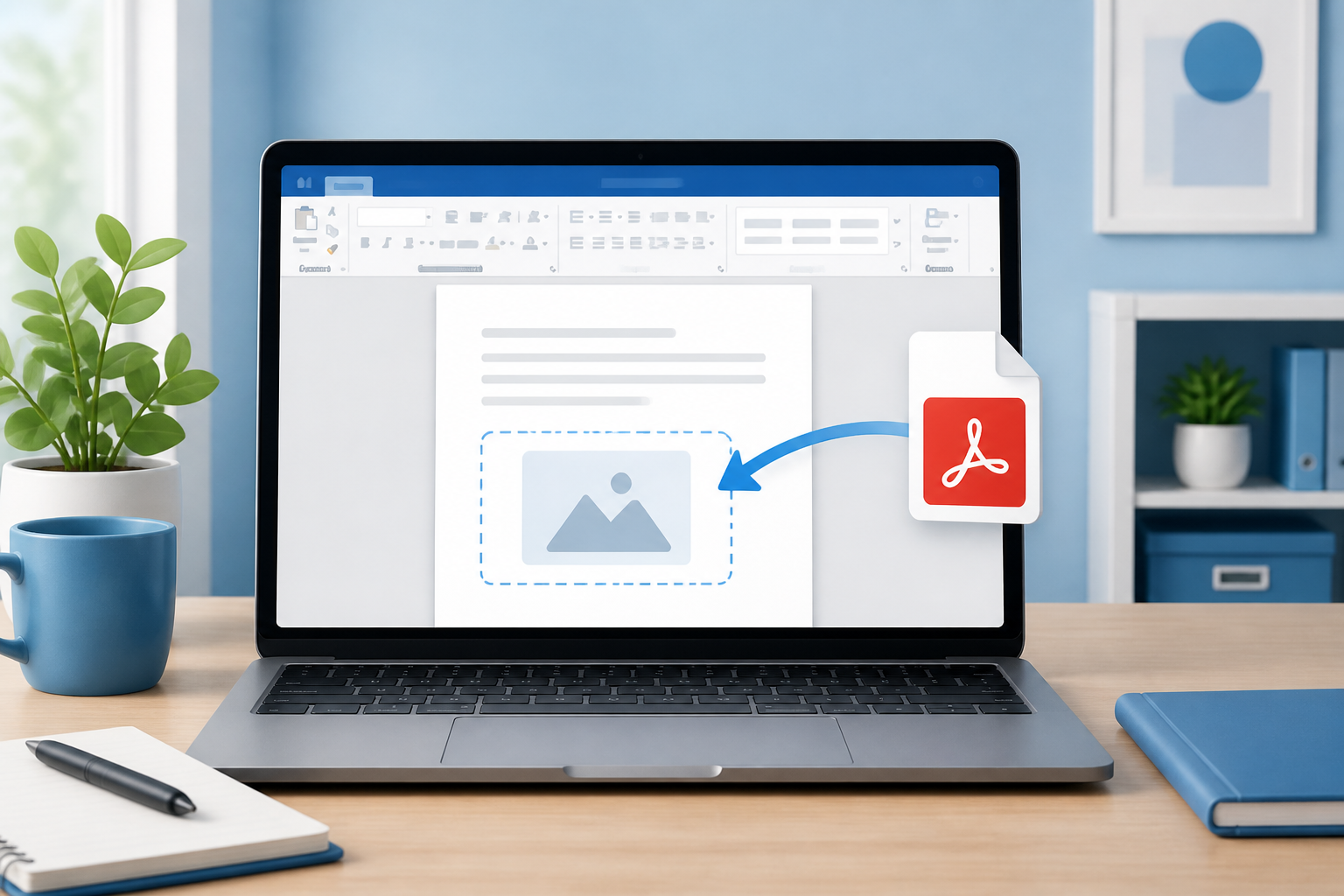
If you only need readers to open the PDF later, an embedded icon is usually enough. If the PDF must appear on the printed page, use images or converted text.
Method 1: Insert PDF as an Object (recommended for attachments)#
This embeds the PDF inside your .docx so recipients can open it from Word (when their computer has a PDF reader).
Windows (Microsoft Word)#
- Open your Word document and place the cursor where you want the PDF.
- Go to Insert → Object (often under the Text group; click the small Object dropdown if needed).
- Choose Create from File.
- Click Browse and select your PDF.
- Optional choices:
- Link to file: Word stores a shortcut to the PDF path. Smaller Word file, but the PDF must stay in that location.
- Display as icon: Shows a PDF icon instead of a page preview.
- Click OK.
You can rename the icon label: select the object → right-click → Object → Convert or edit the caption nearby so readers know what the file is.
Mac (Microsoft Word for Mac)#
Word for Mac’s Object options can differ by version:
- Try Insert → Object (if available) → choose your PDF.
- If Object is limited, use Insert → Text → Object where present, or fall back to Method 2/3 below.
- Another reliable Mac workflow: drag the PDF into Word while holding options your version supports, or insert a hyperlink to the PDF if embedding is restricted.
If embedding fails on Mac, convert the PDF pages to images or open the PDF in Word and paste the content.
Linked vs embedded: quick rule#
- Embedded (no link): Best for emailing one complete package.
- Linked: Best for huge PDFs you update often on a shared drive. Risk: broken link if the file moves.
Method 2: Show PDF pages as images inside Word#
Use this when the PDF must be visible on the page (printouts, slides-style reports, thesis annex look).
Option A: Export PDF pages to images first#
- Open the PDF in Adobe Acrobat, Preview (Mac), Edge, or Chrome.
- Export or screenshot each needed page as PNG/JPG.
- Acrobat: Export PDF → Image
- Mac Preview: File → Export → PNG
- Browser: print to image is limited; screenshots work for short PDFs
- In Word, go to Insert → Pictures.
- Insert the images in order.
- Resize to page width. Use Wrap Text → In Front of Text / Square / Top and Bottom as needed.
- Optional: add captions under each page image (“Annex A — Page 1”).
Option B: Snipping for one or two pages#
For a single certificate or form page:
- Open the PDF at 100% zoom.
- Use Snipping Tool (Windows) or Shift-Command-4 (Mac).
- Paste into Word (Ctrl+V / Cmd+V).
- Crop in Word: select picture → Picture Format → Crop.
Tip: Prefer PNG for text clarity. Avoid heavy JPEG compression on small fonts.
Method 3: Convert the PDF into editable Word content#
Use this when you need to edit, rewrite, or restyle the PDF text.
Open the PDF directly in Word#
- In Word: File → Open.
- Choose the PDF.
- Word warns that it will convert the PDF into an editable document. Confirm.
- Wait for conversion.
- Copy the parts you need into your main document, or save the converted file and keep working there.
Word conversion works best on clean, text-based PDFs. Scanned PDFs become images unless OCR has already been applied.
Copy from a PDF reader#
- Open the PDF in Edge, Acrobat, or Preview.
- Select text → copy.
- Paste into Word.
- Use Paste Special → Unformatted Text if styles look messy.
Tables and multi-column layouts often need cleanup after paste.
Method 4: Insert a hyperlink to the PDF#
Best when the PDF lives online or on a shared folder and you do not want a huge Word file.
- Upload the PDF to OneDrive, Google Drive, or your site (or keep a shared network path).
- In Word: select text like “Download full report (PDF)”.
- Press Ctrl+K (Windows) or Cmd+K (Mac).
- Paste the link → OK.
For local files: Insert → Link to the PDF path. Recipients need access to that same path.
Method 5: Word for the web and practical limits#
Word on the web has fewer Object/embed controls than desktop Word.
Practical approach online:
- Insert a link to the PDF stored in OneDrive/SharePoint.
- Or convert PDF pages to images, upload, and insert pictures.
- For full embed features, open the file in desktop Word, insert the object, then save back to the cloud.
Formatting tips after you insert the PDF#
- Keep icons aligned in a list if you attach multiple PDFs.
- Add a short line of text: file name, date, and what it contains.
- For page images, set consistent width (e.g., full content width) so annex pages look uniform.
- Compress pictures before sharing: File → Compress Pictures if the document becomes large.
- If emailing, watch mailbox limits. Embedded PDFs can push a
.docxover size caps.
Common mistakes to avoid#
- Linking, then moving the PDF — the object breaks. Embed if you will email the Word file.
- Expecting editable text from an embedded object — an object opens the PDF; it does not become Word paragraphs.
- Converting scanned PDFs without OCR — you get pictures of pages, not searchable text.
- Inserting a 100-page PDF as images — the Word file becomes huge and slow. Link or attach instead.
- Password-protected PDFs — unlock or remove protection before insert/convert, if you have rights to do so.
- Assuming every Mac Word build matches Windows menus — if Object is missing, use images or conversion.
Which method should students and offices use?#
| Situation | Use this |
|---|---|
| Assignment with separate marksheet PDF | Embed as icon + label |
| Printed report with annex pages visible | Page images |
| Editing a resume/PDF into Word format | Open/convert in Word |
| Company policy PDF on SharePoint | Hyperlink |
| Client email with one supporting brochure | Embed object (not linked) |
Quick checklist before you send the Word file#
- Open the document on another computer or in Word Safe mode if needed and test the PDF object/link.
- Confirm the PDF opens with a double-click (for objects).
- Check file size under your email/upload limit.
- Make sure linked files are included in the shared folder zip, if you used links.
- Add clear labels so readers know which attachment is which.
FAQ#
Can I insert a PDF into Word and edit it like normal text?#
Not with Insert Object. To edit text, open/convert the PDF in Word or copy text from a PDF reader.
Does the embedded PDF travel with the Word file?#
Yes, if you embedded it without “Link to file.” Linked PDFs do not fully travel unless the recipient has the same file path or you send the PDF separately.
Why do I only see an icon, not the PDF pages?#
“Display as icon” is on, or Word cannot create a preview. Double-click the icon to open the PDF, or insert page images if you need visible pages.
Can I insert only one page from a multi-page PDF?#
Yes. Export or screenshot that page as an image and insert the picture. Object insert usually attaches the whole PDF file.
Is this the same on Google Docs?#
Google Docs does not embed PDFs the same way. Upload the PDF to Drive and insert a link, or insert page images.
Will this work in older Word versions?#
Insert → Object → Create from File exists in many classic desktop versions, but menu names vary. Word for the web remains more limited.
Bottom line#
To insert a PDF into a Word document, pick the method that matches your outcome:
- Object embed for a portable attachment
- Images for visible pages on paper
- Convert/open in Word for editable text
- Hyperlink for large or shared files
Start with Insert → Object on Windows when you only need the PDF attached. Switch to images or conversion when the PDF must appear or be edited on the page. Test the final file once before you send it — that single check prevents most broken-PDF surprises.